APIPricingDocsBlogPartnersContact
Back to blog
Tutorial

How to Connect ZKTeco to Odoo: The Cloud API Approach (No VPN, No Local Software)

Most ZKTeco-Odoo integrations require local network access, VPNs, or static IPs. Learn how to connect ZKTeco biometric devices to any Odoo instance β€” including Odoo Online and Odoo.sh β€” using a cloud REST API.

PunchConnect TeamΒ·Mar 15, 2026Β·10 min read

Introduction

If you have searched for how to connect ZKTeco to Odoo, you have probably discovered that the answer is more complicated than it should be. Dozens of Odoo community forum threads ask the same question, and the answers almost always lead to the same dead ends: local Python libraries that only work on the same LAN as the device, VPN tunnels that your IT team hates, or static IP configurations that expose your network to the internet.

This tutorial takes a different approach. Instead of fighting with local network constraints, we will use a cloud REST API to bridge the gap between your ZKTeco biometric device and Odoo β€” whether you run Odoo Online, Odoo.sh, or a self-hosted instance.

The Problem: Why ZKTeco-Odoo Integration Is Painful

ZKTeco biometric devices (fingerprint scanners, face recognition terminals) are everywhere. They are affordable, reliable, and widely deployed. Odoo is one of the most popular open-source ERPs. Connecting the two should be straightforward. It is not.

Here is why.

The Traditional Tools Are LAN-Only

The most common tools for talking to ZKTeco devices are:

pyzk β€” A Python library that communicates with ZKTeco devices over the local network. It requires direct network access to the device. It is open-source but has known bugs with newer firmware versions and limited maintenance.

node-zklib β€” A Node.js equivalent. Same constraint: the machine running the code must be on the same network as the device. Multiple forks exist, none are definitive.

Odoo App Store modules β€” There are several modules that claim to integrate ZKTeco with Odoo. Almost all of them use pyzk or node-zklib under the hood, which means they inherit the same local network requirement.

This Breaks for Cloud-Hosted Odoo

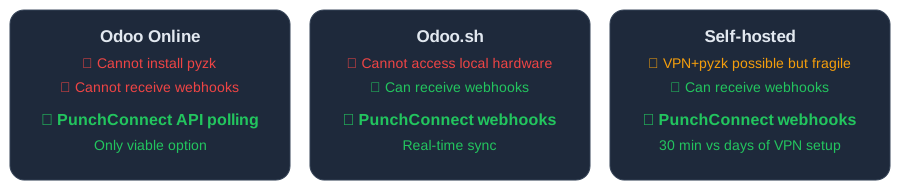
If you run Odoo Online (Odoo's SaaS platform), you cannot install custom Python libraries. Full stop. The pyzk approach is impossible.

If you run Odoo.sh (Odoo's PaaS platform), you cannot install system-level Python packages that require network access to local hardware. The pyzk approach fails again.

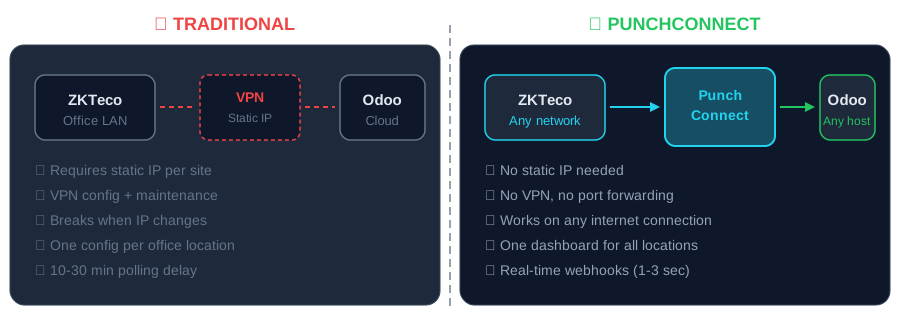
Even if you self-host Odoo on a VPS or cloud server, your Odoo instance is in a data center and your ZKTeco device is in your office. They are not on the same network. To make pyzk work, you need one of these workarounds:

A VPN tunnel between your office network and your server β€” adds complexity, latency, and a recurring cost.

Port forwarding on your office router to expose the device to the internet β€” a significant security risk.

A static IP on your office internet connection β€” not available from all ISPs, and it still requires port forwarding.

None of these are acceptable for production use, especially if you manage devices across multiple locations.

The Cloud Approach: Configure Once, Access Anywhere

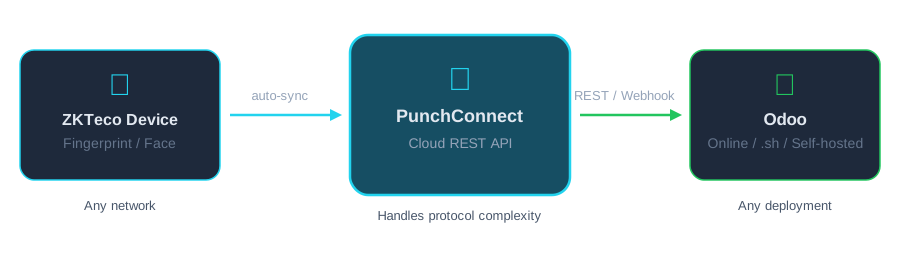
There is a better architecture. Instead of Odoo reaching into your local network to pull data from the device, the device sends data to PunchConnect's cloud, and Odoo fetches it from there via a standard REST API.

You configure the device once through the PunchConnect dashboard. After that, attendance data flows automatically to the cloud. Your Odoo instance fetches it through a standard REST API β€” no local software, no VPN, no static IP. Just HTTPS calls from anywhere.

This works with every Odoo deployment model: Online, .sh, and self-hosted. Check our API documentation for the full endpoint reference.

text
ZKTeco Device ──(auto-sync)──> PunchConnect Cloud ──(REST API)──> Odoo
                                      β”‚
                                      └──(Webhook)──> Your server (optional)

Step-by-Step: Connect ZKTeco to Odoo with PunchConnect

Prerequisites

A ZKTeco device (most modern models are supported β€” including K-series, uFace, SpeedFace, ProFace, and MB-series).

An Odoo instance (any version, any hosting model).

A PunchConnect account. Start a 7-day free trial β€” no credit card required.

Step 1: Register Your Device on PunchConnect

After creating your PunchConnect account, you will receive an API token (prefixed with pc_live_). Use it to register your device.

Python:

JavaScript (Node.js):

```javascript
const API_TOKEN = "pc_live_your_token_here";
const BASE_URL = "https://api.punchconnect.com";

const response = await fetch(${BASE_URL}/v1/devices, {
method: "POST",
headers: {
Authorization: Bearer ${API_TOKEN},
"Content-Type": "application/json",
},
body: JSON.stringify({
serial_number: "BFGH234900045",
name: "Main Entrance - Floor 1",
location: "Headquarters",
}),
});

const device = await response.json();
console.log(Device ID: ${device.id});
console.log(Status: ${device.status});
```

python
import requests

API_TOKEN = "pc_live_your_token_here"
BASE_URL = "https://api.punchconnect.com"

# Register a new device
response = requests.post(
    f"{BASE_URL}/v1/devices",
    headers={
        "Authorization": f"Bearer {API_TOKEN}",
        "Content-Type": "application/json"
    },
    json={
        "serial_number": "BFGH234900045",
        "name": "Main Entrance - Floor 1",
        "location": "Headquarters"
    }
)

device = response.json()
print(f"Device ID: {device['id']}")
print(f"Status: {device['status']}")

Step 2: Connect the Device

Once registered, follow the setup instructions in the PunchConnect dashboard to connect your ZKTeco device. The process takes about 5 minutes per device β€” you will enter a few settings on the device's admin panel, and it will start syncing automatically.

Within 60 seconds of setup, the device appears as "online" in your dashboard. You can verify via the API:

python
response = requests.get(
    f"{BASE_URL}/v1/devices",
    headers={"Authorization": f"Bearer {API_TOKEN}"}
)

for device in response.json()["data"]:
    print(f"{device['name']}: {device['status']}")
    # Output: "Main Entrance - Floor 1: online"

Step 3: Set Up Webhooks for Real-Time Attendance

For real-time attendance syncing, set up a webhook. PunchConnect will POST attendance events to your URL as they happen β€” no polling needed.

Each webhook POST includes a JSON payload with the employee ID, timestamp, device info, and punch direction (in/out).

If you cannot receive webhooks (e.g., Odoo Online), skip to Step 4 β€” you can poll the API on a schedule instead.

python
response = requests.post(
    f"{BASE_URL}/v1/webhooks",
    headers={
        "Authorization": f"Bearer {API_TOKEN}",
        "Content-Type": "application/json"
    },
    json={
        "url": "https://your-odoo-instance.com/api/punchconnect/webhook",
        "events": ["attendance.created"],
        "secret": "your_webhook_secret"
    }
)

webhook = response.json()
print(f"Webhook ID: {webhook['id']}")
print(f"Status: {webhook['status']}")

Step 4: Fetch Attendance Data in Odoo

Here is where it all comes together. This Python script fetches attendance records from PunchConnect and creates attendance entries in Odoo using Odoo's XML-RPC API.

This works from any machine that can reach the internet β€” a cron job on your server, an Odoo scheduled action, or even a serverless function.

You can run this script as an Odoo scheduled action (ir.cron) that runs every 10-15 minutes, a cron job on any server, or a webhook handler that processes records in real-time from Step 3.

python
import requests
import xmlrpc.client
from datetime import datetime, timedelta

# ---------- PunchConnect Config ----------
PC_TOKEN = "pc_live_your_token_here"
PC_BASE = "https://api.punchconnect.com"

# ---------- Odoo Config ----------
ODOO_URL = "https://your-company.odoo.com"
ODOO_DB = "your-database"
ODOO_USER = "admin@yourcompany.com"
ODOO_PASSWORD = "your_api_key"

# ---------- Connect to Odoo ----------
common = xmlrpc.client.ServerProxy(f"{ODOO_URL}/xmlrpc/2/common")
uid = common.authenticate(ODOO_DB, ODOO_USER, ODOO_PASSWORD, {})
models = xmlrpc.client.ServerProxy(f"{ODOO_URL}/xmlrpc/2/object")

# ---------- Fetch Recent Attendance from PunchConnect ----------
since = (datetime.utcnow() - timedelta(hours=1)).isoformat() + "Z"

response = requests.get(
    f"{PC_BASE}/v1/attendance",
    headers={"Authorization": f"Bearer {PC_TOKEN}"},
    params={
        "since": since,
        "limit": 100
    }
)

records = response.json()["data"]
print(f"Fetched {len(records)} attendance records")

# ---------- Sync to Odoo ----------
for record in records:
    # Look up the Odoo employee by badge ID
    employee_ids = models.execute_kw(
        ODOO_DB, uid, ODOO_PASSWORD,
        "hr.employee", "search",
        [[["barcode", "=", record["employee_id"]]]]
    )

    if not employee_ids:
        print(f"No Odoo employee found for badge {record['employee_id']}, skipping")
        continue

    employee_id = employee_ids[0]
    punch_time = record["timestamp"]

    if record["direction"] == "in":
        # Create check-in record
        models.execute_kw(
            ODOO_DB, uid, ODOO_PASSWORD,
            "hr.attendance", "create",
            [{"employee_id": employee_id, "check_in": punch_time}]
        )
        print(f"Check-in recorded for employee {employee_id} at {punch_time}")

    elif record["direction"] == "out":
        # Find open attendance and set check-out
        open_attendance = models.execute_kw(
            ODOO_DB, uid, ODOO_PASSWORD,
            "hr.attendance", "search",
            [[
                ["employee_id", "=", employee_id],
                ["check_out", "=", False]
            ]],
            {"limit": 1, "order": "check_in desc"}
        )

        if open_attendance:
            models.execute_kw(
                ODOO_DB, uid, ODOO_PASSWORD,
                "hr.attendance", "write",
                [open_attendance, {"check_out": punch_time}]
            )
            print(f"Check-out recorded for employee {employee_id} at {punch_time}")

Bonus: Sync Employees to the Device

You can also push employees from Odoo to your ZKTeco device via PunchConnect, so new hires appear on the device automatically:

python
# Fetch employees from Odoo
employees = models.execute_kw(
    ODOO_DB, uid, ODOO_PASSWORD,
    "hr.employee", "search_read",
    [[["active", "=", True]]],
    {"fields": ["id", "name", "barcode"]}
)

# Sync to PunchConnect (which syncs to the device)
response = requests.post(
    f"{PC_BASE}/v1/employees/sync",
    headers={
        "Authorization": f"Bearer {PC_TOKEN}",
        "Content-Type": "application/json"
    },
    json={
        "employees": [
            {
                "id": str(emp["barcode"]),
                "name": emp["name"]
            }
            for emp in employees
            if emp["barcode"]
        ]
    }
)

result = response.json()
print(f"Synced {result['synced']} employees, {result['errors']} errors")

Odoo Online vs Self-Hosted: Which Approach Works Where?

If you use Odoo Online, you cannot install custom Python libraries at all. The pyzk/node-zklib approach is impossible. A cloud REST API like PunchConnect is your only viable option for ZKTeco biometric integration.

If you use Odoo.sh, you cannot install system-level packages that talk to local hardware. Same result β€” the traditional LAN-based tools will not work.

If you self-host Odoo on a VPS or cloud server, you could technically set up a VPN + pyzk, but it takes hours to configure, requires ongoing VPN/network monitoring, and breaks when your ISP changes your IP. With PunchConnect, setup takes under 30 minutes and works across all your locations from a single API.

The traditional approach also limits you to polling only (running a script periodically to pull data from the device). PunchConnect supports real-time webhooks, so attendance events reach Odoo within seconds of a punch.

For multi-location deployments, the difference is even more dramatic. A VPN-based setup requires separate configuration per site. PunchConnect handles all devices from one dashboard and one API β€” whether you have 2 devices or 200.

Pricing

PunchConnect costs $200 per device (one-time license) plus $50/year for renewals starting in Year 2. There are no per-user fees, which matters at scale β€” whether you have 10 employees or 10,000 per device, the price is the same.

Volume discounts are available: 10+ devices at $180, 25+ at $160, 50+ at custom pricing. See the full breakdown on our pricing page.

PunchConnect currently powers production workloads handling 24,000+ employees across multiple locations β€” so it handles real-world scale.

Frequently Asked Questions

Can I connect ZKTeco to Odoo Online without local software? Yes. PunchConnect is a cloud REST API β€” your ZKTeco device syncs data to PunchConnect's cloud, and your Odoo Online instance fetches it via standard HTTPS calls. No local software, no VPN, no static IP required.

Which ZKTeco models are compatible with PunchConnect? Most modern ZKTeco models are supported, including the K-series, uFace, SpeedFace, ProFace, and MB-series. If your device has a built-in web/cloud server capability, it will work. Contact us if you are unsure about a specific model.

How fast does attendance data reach Odoo? With webhooks, attendance events reach your Odoo instance within seconds of a punch. If you use polling instead (e.g., on Odoo Online where you cannot receive webhooks), the delay depends on your polling interval β€” typically 5-15 minutes.

Do I need to install anything on the ZKTeco device? No. You configure a few settings on the device's admin panel through the PunchConnect dashboard. There is no firmware update, no custom software, and no SDK to install on the device itself.

How does PunchConnect compare to pyzk for self-hosted Odoo? pyzk requires LAN access to the device, which means VPNs or port forwarding for remote Odoo servers. PunchConnect works over the internet with no network configuration. It also supports webhooks for real-time data, while pyzk is polling-only. The trade-off is cost β€” pyzk is free (open-source), PunchConnect is $200/device.

Get Started

Connecting ZKTeco to Odoo does not have to involve VPNs, static IPs, or fragile local scripts. The cloud API approach is simpler, more secure, and works with every Odoo deployment model.

Start your 7-day free trial β€” no credit card required. Register your device and connect it through the dashboard in about 15 minutes. Then run the sync script above or set up webhooks for real-time attendance.

If you have questions about the integration or need help with your specific ZKTeco model, reach out through our contact page. We have experience with just about every ZKTeco firmware variant out there.

Related articles

How to Connect ZKTeco to Odoo: The Cloud API Approach (No VPN, No Local Software) | PunchConnect